External Authentication
RAPTR supports external OAuth 2.0 / OpenID Connect (OIDC) identity providers alongside its built-in local authentication. This allows users to sign in with their organization's existing identity provider (e.g., Microsoft Entra ID, Okta, Keycloak).
How It Works
- The frontend gets the list of available providers from the
/auth/providersendpoint - The frontend redirects the user to the configured identity provider for login
- The IDP authenticates the user and returns a JWT access token
- RAPTR validates the token using the provider's JWKS (JSON Web Key Set) endpoint
- RAPTR validates the existence of the user in the database
- If the token is valid and the user's email domain is trusted for this provider, access is granted
Enforce MFA for external users
It is assumed that MFA is enforced at the identity provider level. Nevertheless, you have the option to enable additional MFA for external users by setting the OTP_EXTERNAL_ENABLED in your .env file to true. See configuration
No external MFA claim validation
RAPTR does not validate the presence of an MFA claim in the external IDP JWT.
Configuration
External providers are configured via the EXTERNAL_AUTH_CONFIGS environment variable in your .env file. The value is a JSON array of provider objects.
Provider Fields
| Field | Type | Required | Description |
|---|---|---|---|
name |
string | Yes | Display name shown on the login page (e.g., "Entra ID", "Okta") |
configuration |
string | Yes | The IDP's .well-known/openid-configuration URL |
issuer |
string | Yes | OIDC issuer URL. Must match the iss claim in the JWT |
jwks_url |
string | Yes | URL to the provider's JWKS endpoint for token signature verification |
audience |
string | Yes | Expected aud claim in the JWT. Either a dedicated client ID for your backend or the OAuth client ID |
client_id |
string | Yes | OAuth 2.0 client ID registered with the provider |
scope |
string | Yes | OAuth scopes to request (e.g., openid profile email) |
username_claim |
string | Yes | JWT claim to match the external user against the user in the RAPTR database |
trusted_email_domains |
list | Yes | List of allowed email domains for which the IDP is allowed to issue JWT |
Frontend Implementation
Since the frontend application is a Single Page Application (SPA) and cannot securely store a client_secret, it acts as a public client. Therefore, the implementation uses the Authorization Code Flow.
To ensure a secure token exchange without a client secret, Proof Key for Code Exchange (PKCE) is strictly enforced by the frontend. When configuring your external Identity Provider, ensure the client is set up as a public client (e.g., "Single-page application" platform type) that supports the Authorization Code Flow with PKCE and does not require a client secret.
No Auto-Provisioning
When a user logs in via an external provider a corresponding user must already exist in the database. The user is then authenticated using the external provider's JWT. See administration to create users.
Last login time
When a user logs in via an external provider, the last_login_at timestamp is not updated. This field is only updated for local (password-based) authentication.
Example Entra ID Setup Steps
In this example setup we show you how to configure Entra ID as an external authentication provider for RAPTR.
For this purpose we will create two application registrations in Entra ID:
- The backend application registration exposing an "API" which can be used as
scopeandaudience - The frontend application registration which is used by the SPA to authenticate against Entra ID
Entra Access Token Version
The AccessTokenVersion must be set to 2 for the backend application registration.
Register the backend as an application in Entra ID
-
In the Entra Portal create a new Application Registration for the backend
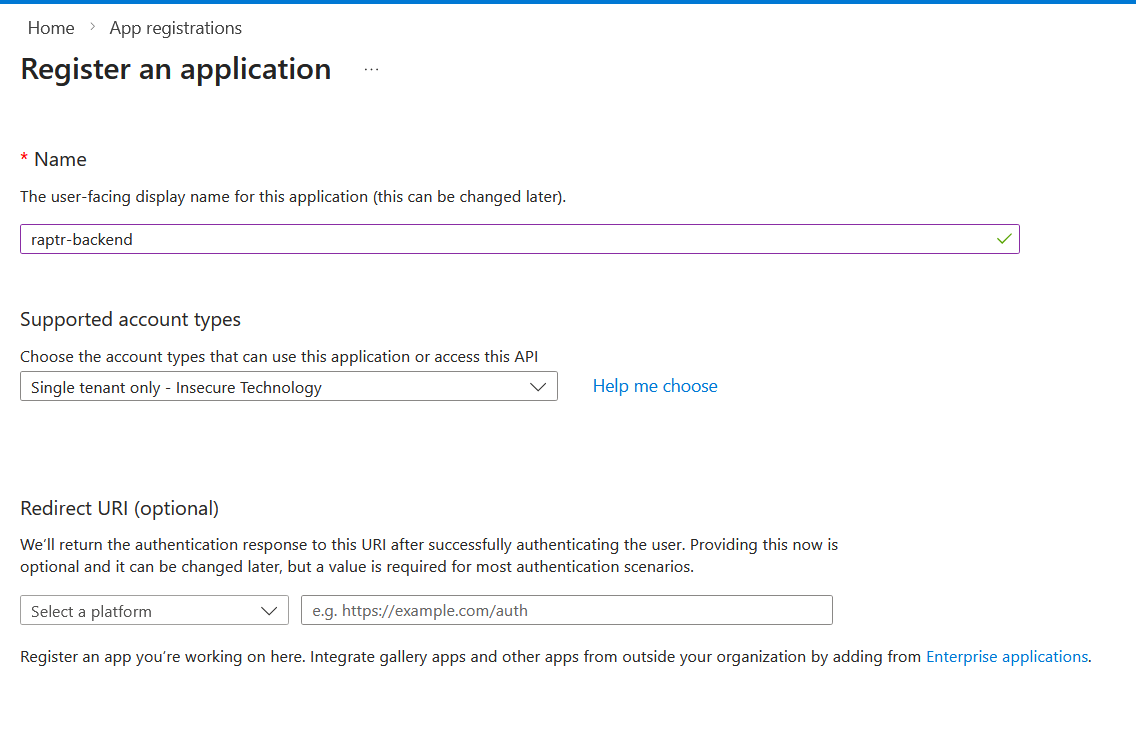
-
Configure an API exposure for the backend application registration
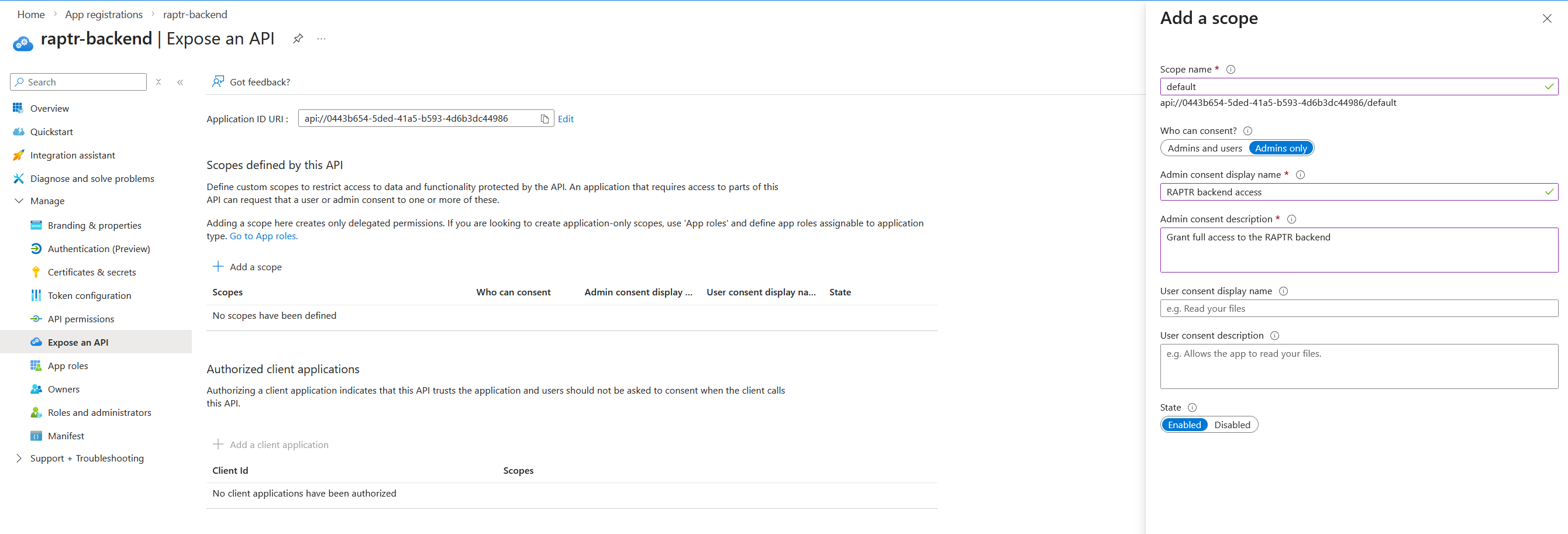
-
Configure the
AccessTokenVersionto2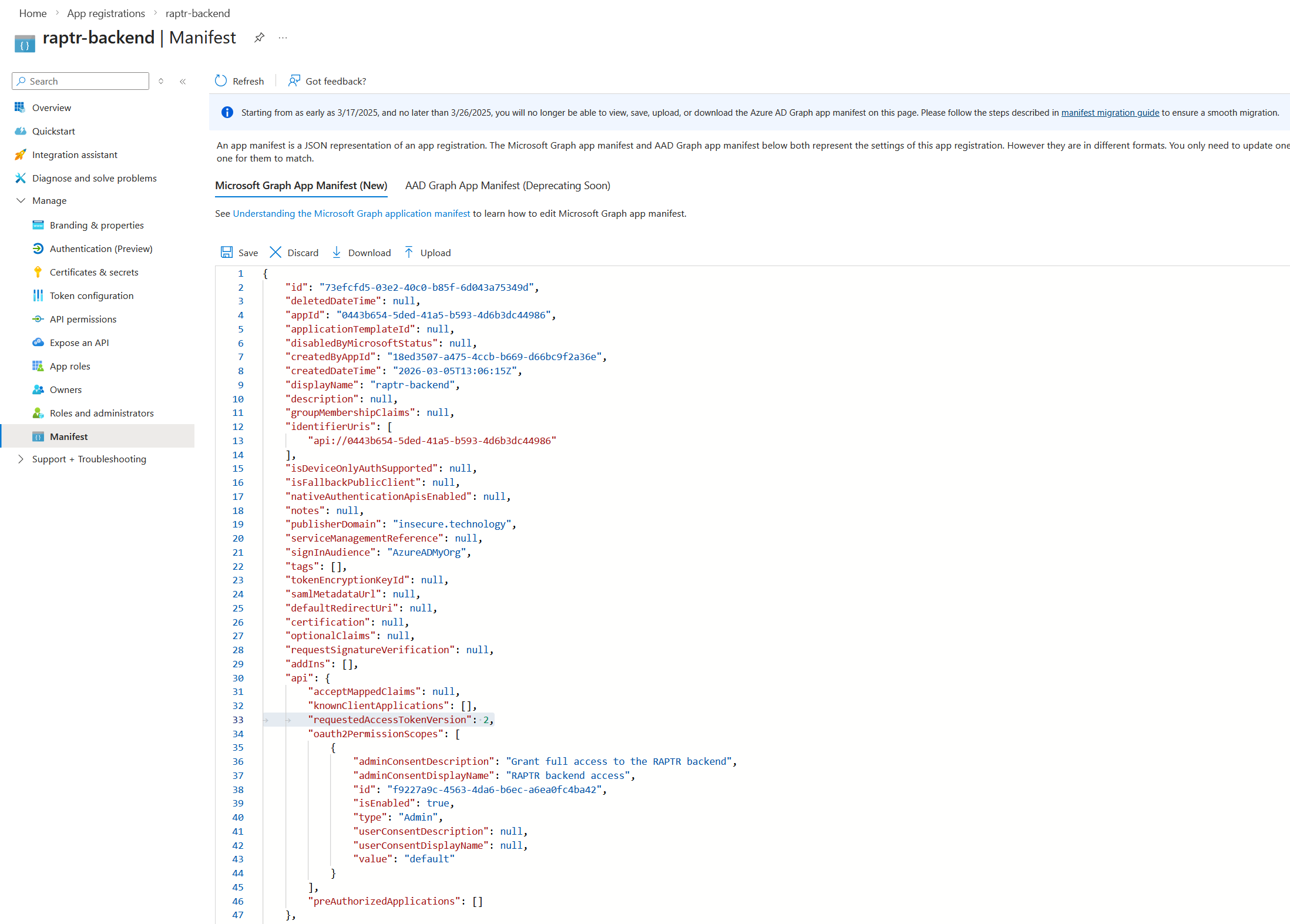
-
Note down the following values:
- Application (client) ID of the backend application registration (e.g.
0443b654-5ded-41a5-b593-4d6b3dc44986) - The defined API scope from step 2. (e.g.
api://0443b654-5ded-41a5-b593-4d6b3dc44986/default)
- Application (client) ID of the backend application registration (e.g.
Register the frontend as an application in Entra ID
-
In the Entra Portal create a new Application Registration for the frontend
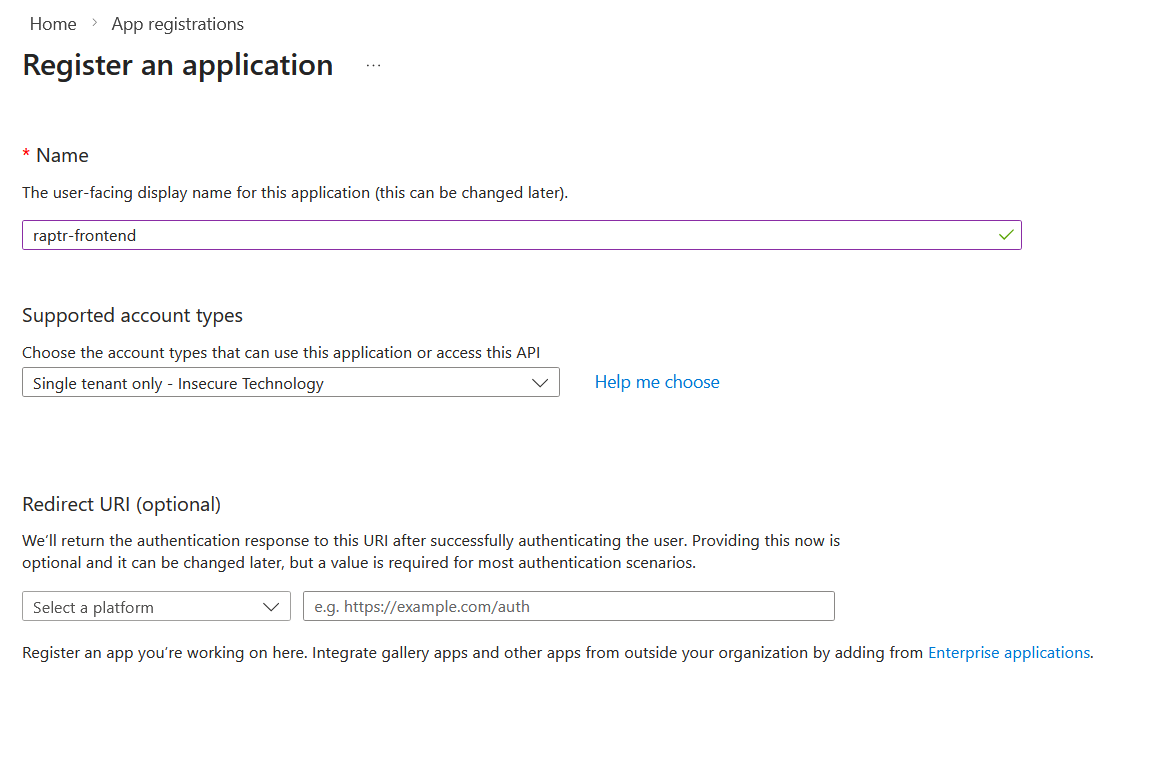
-
Configure valid SPA Redirect URI - The frontend calls
/auth/callback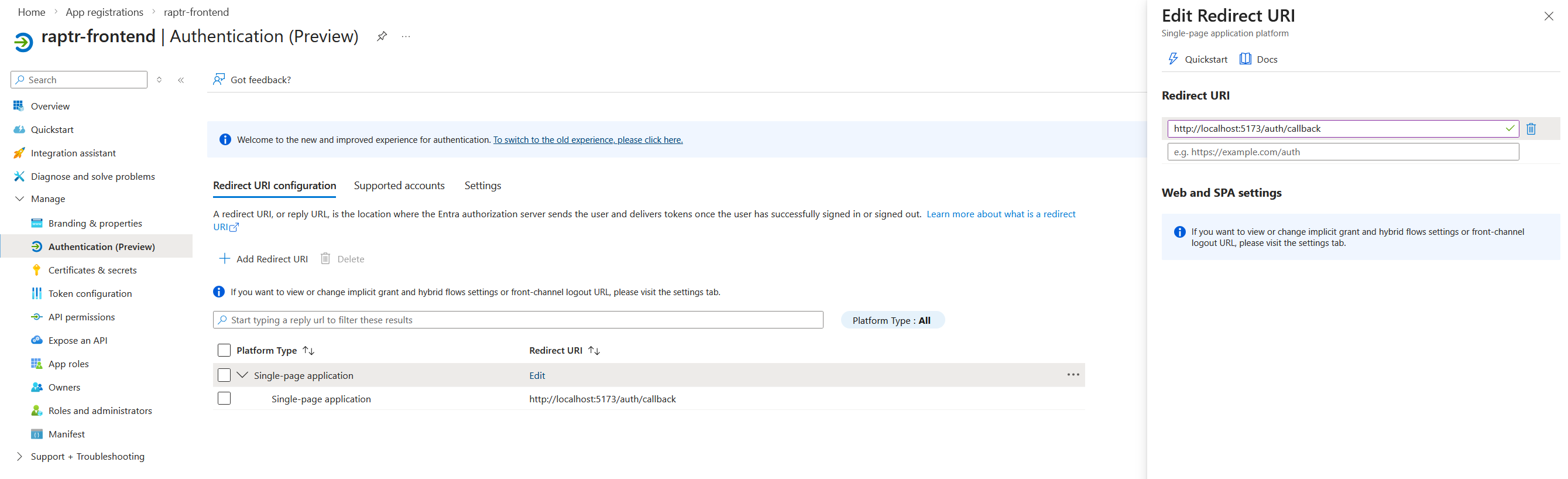
-
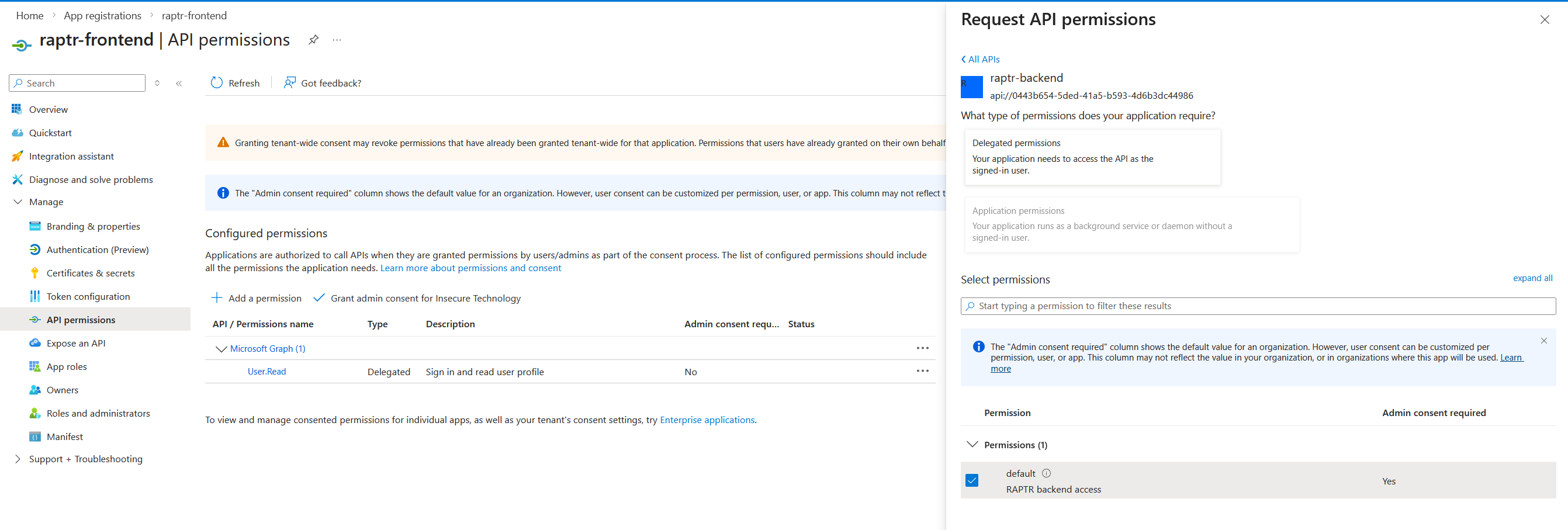
Grant API access to the backend API - You might need to consent tenant wide with an admin account
-
Note down the following values:
- Application (client) ID of the frontend application registration (e.g.
800fb3d6-112c-4231-bbd7-cf2d90ab516c) - Your tenant ID (e.g.
925c2cd8-a177-41a5-93f3-1257ffd75334)
- Application (client) ID of the frontend application registration (e.g.
Example Entra ID Configuration
Now lets bring everything together for the RAPTR configuration:
EXTERNAL_AUTH_CONFIGS='[
  {
    "name": "Entra ID",
    "configuration": "https://login.microsoftonline.com/{tenant-id}/v2.0/.well-known/openid-configuration",
    "issuer": "https://login.microsoftonline.com/{tenant-id}/v2.0",
    "jwks_url": "https://login.microsoftonline.com/{tenant-id}/discovery/v2.0/keys",
    "audience": "{your-backend-app-client-id}",
    "scope": "api://{your-backend-app-client-id}/default",
    "client_id": "{your-frontend-app-client-id}",
    "username_claim": "preferred_username",
    "trusted_email_domains": [
      "{your-org.something}"
    ]
  }
]'
Config example with values from the setup
EXTERNAL_AUTH_CONFIGS='[
  {
    "name": "Entra ID",
    "configuration": "https://login.microsoftonline.com/925c2cd8-a177-41a5-93f3-1257ffd75334/v2.0/.well-known/openid-configuration",
    "issuer": "https://login.microsoftonline.com/925c2cd8-a177-41a5-93f3-1257ffd75334/v2.0",
    "jwks_url": "https://login.microsoftonline.com/925c2cd8-a177-41a5-93f3-1257ffd75334/discovery/v2.0/keys",
    "audience": "0443b654-5ded-41a5-b593-4d6b3dc44986",
    "scope": "api://0443b654-5ded-41a5-b593-4d6b3dc44986/default",
    "client_id": "800fb3d6-112c-4231-bbd7-cf2d90ab516c",
    "username_claim": "preferred_username",
    "trusted_email_domains": [
      "insecure.technology"
    ]
  }
]'
Multiple Providers
You can configure multiple providers by adding more objects to the JSON array. Each provider will appear as a separate login option on the login page.
EXTERNAL_AUTH_CONFIGS='[
  {
    "name": "Entra ID",
    "configuration": "entra",
    "issuer": "https://login.microsoftonline.com/TENANT_A/v2.0",
    "jwks_url": "https://login.microsoftonline.com/TENANT_A/discovery/v2.0/keys",
    "audience": "CLIENT_ID_A",
    "client_id": "CLIENT_ID_A",
    "scope": "openid profile email",
    "username_claim": "email",
    "trusted_email_domains": ["company-a.com"]
  },
  {
    "name": "Okta",
    "configuration": "okta",
    "issuer": "https://company-b.okta.com",
    "jwks_url": "https://company-b.okta.com/oauth2/v1/keys",
    "audience": "CLIENT_ID_B",
    "client_id": "CLIENT_ID_B",
    "scope": "openid profile email",
    "username_claim": "email",
    "trusted_email_domains": ["company-b.com"]
  }
]'
Logout time and iat in Entra Tokens
For whatever reason, Microsoft issues tokens with an iat time that is several minutes in the past. This interferes with the token invalidation process in RAPTR. When a user logs out, the time at which they logged out is written to the database. Every JWT must be issued before that timestamp. However, since Microsoft issues an iat time from the past, a user who logs out and logs in directly again will receive a new JWT, but the iat time will still be older than the logout timestamp. Consequently, the token will be deemed invalid.