Assets and Tags
Assets and tags help you organize and contextualize your assessment activities.
Assets
Assets represent the infrastructure and systems involved in your assessment — servers, workstations, security tools, network devices, and anything else relevant to the engagement.
Managing Assets
There are two options for managing assets for an assessment:
- Open the assessment
- Click Assets in the assessment toolbar
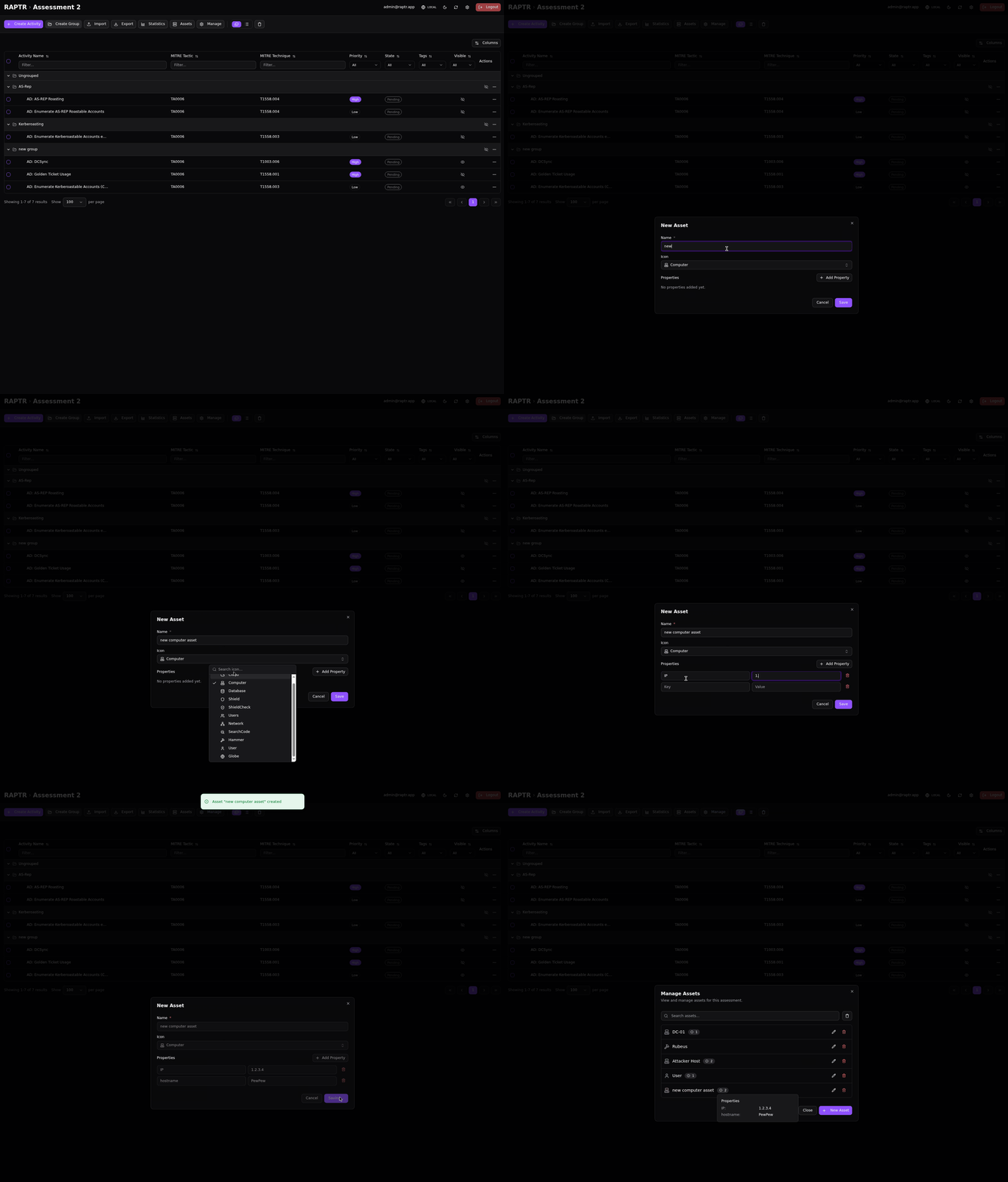
- From here you can create, edit, and delete assets
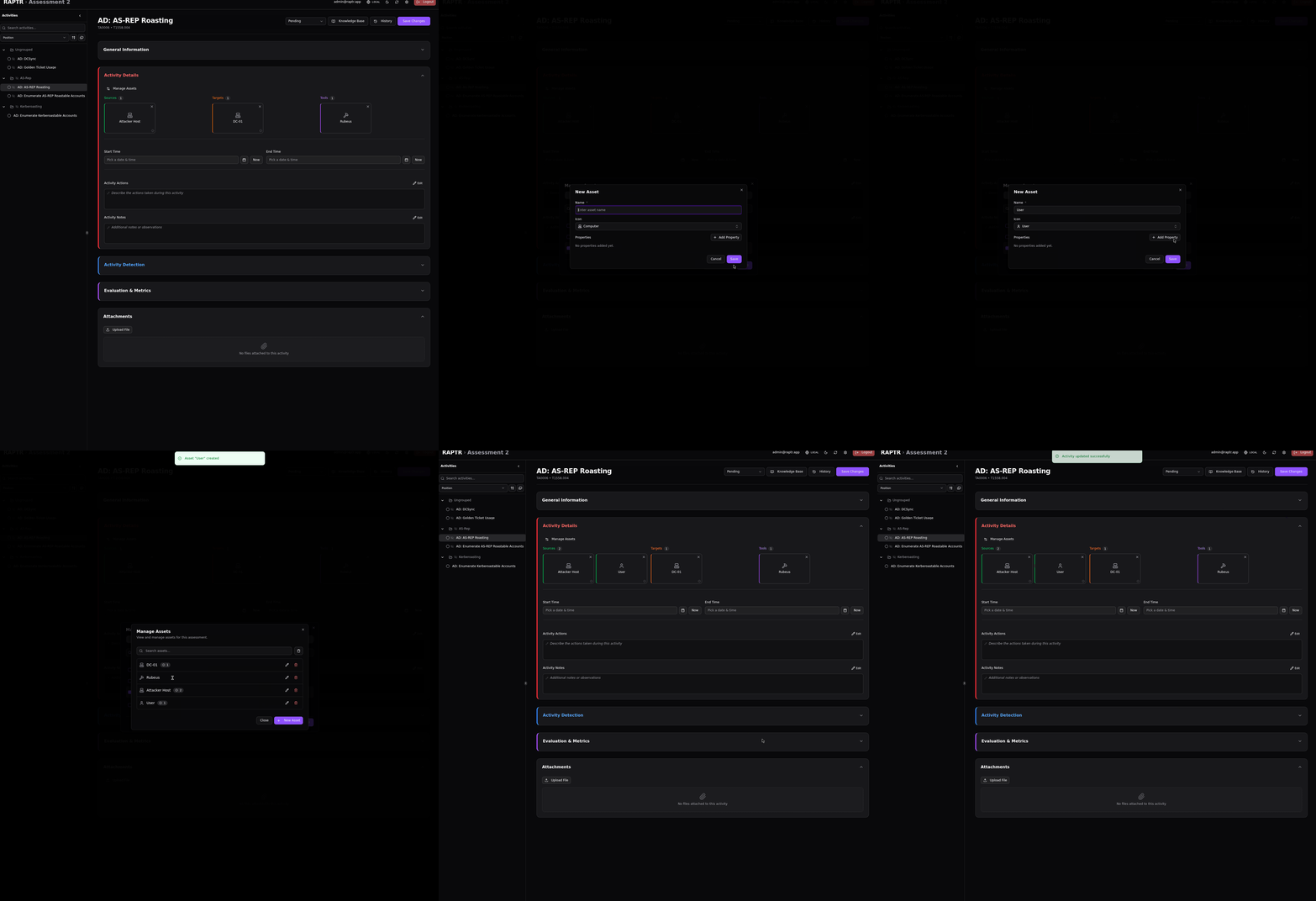
Alternatively, within an activity form, click on Manage Assets in the section where an asset can be linked.
Creating an Asset
Each asset has:
- Name: A descriptive identifier (e.g., "DC01", "Splunk SIEM", "Attacker Kali Box")
- Icon: An optional icon for visual identification
- Properties: Flexible key-value pairs for any metadata you need
Properties are free-form — you can store whatever is relevant for your assessment:
| Example Property | Value |
|---|---|
ip |
192.168.1.10 |
hostname |
dc01.corp.local |
os |
Windows Server 2022 |
mac |
00:11:22:33:44:55 |
role |
Domain Controller |
Creating an asset
Asset icon names
Currently the Lucide icon name is displayed and not a more user friendly name.
Linking Assets to Activities
Assets are linked to activities with a specific role describing how the asset is involved:
- Source: The system from which the attack originates (e.g., the attacker's workstation)
- Target: The system being attacked (e.g., a domain controller)
- Tool: A tool used in the activity (e.g., Cobalt Strike, Mimikatz)
- Log Source: The system that captured logs of the activity (e.g., SIEM, EDR)
- Prevention Source: The system that blocked the activity (e.g., firewall, EDR)
- Alert Source: The system that generated an alert (e.g., SIEM, SOAR)
- Stakeholder Notification Source: The system that produced a notification to stakeholders
Source, target, and tool assets are typically set by the Red Team during activity planning. Log, prevention, alert, and stakeholder notification source assets are typically set by the Blue Team during detection review.
Linking assets to activities
Editing and Deleting Assets
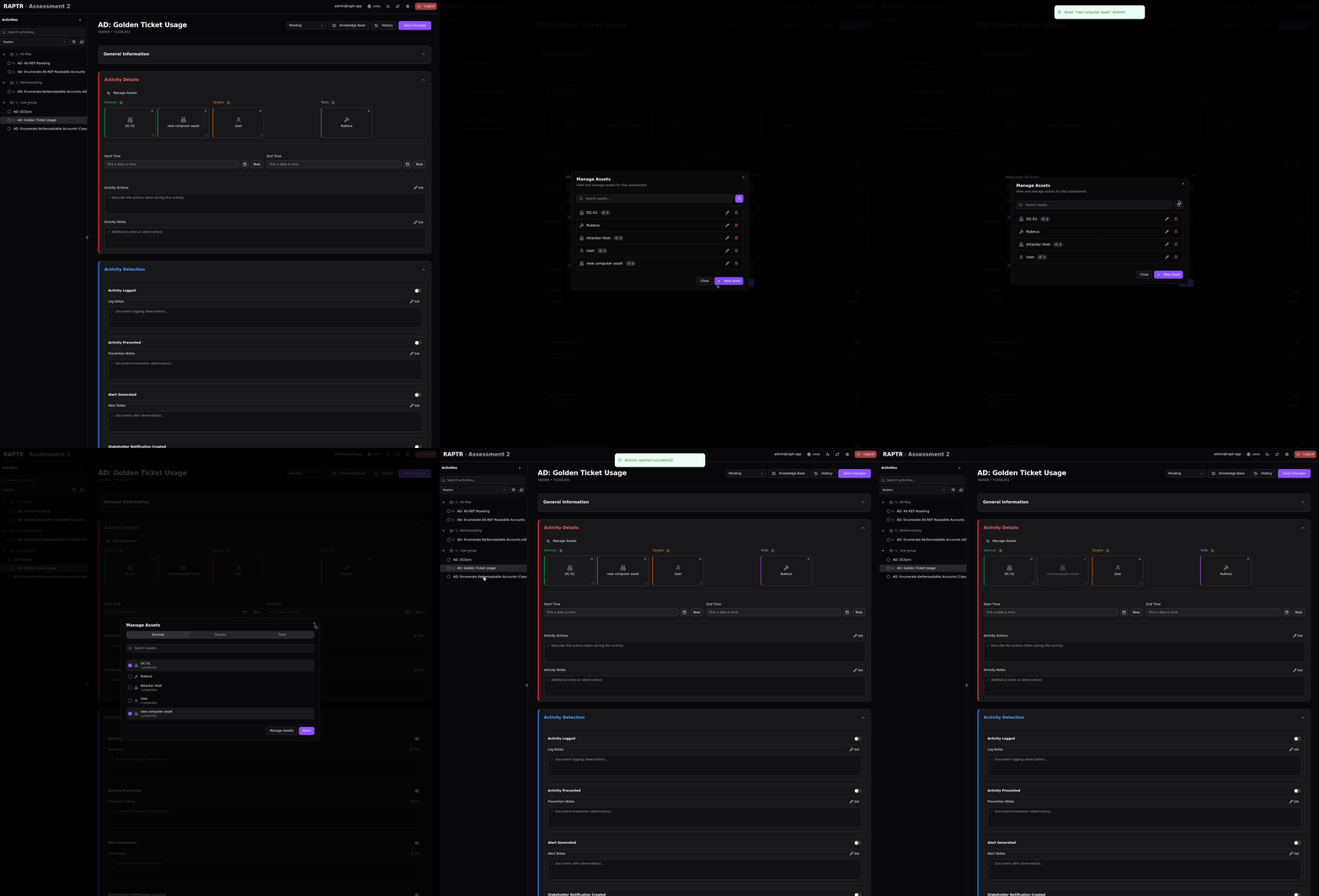
Assets can be edited to update their name, icon, or properties at any time. Deleting an asset will soft delete it. You can view soft deleted assets through the symbol.
In the activity details, soft deleted assets will be reprecented through a dotted line.
Soft delete assets
Tags
Tags are colored labels used to optionally categorize and filter activities within an assessment.
Creating Tags
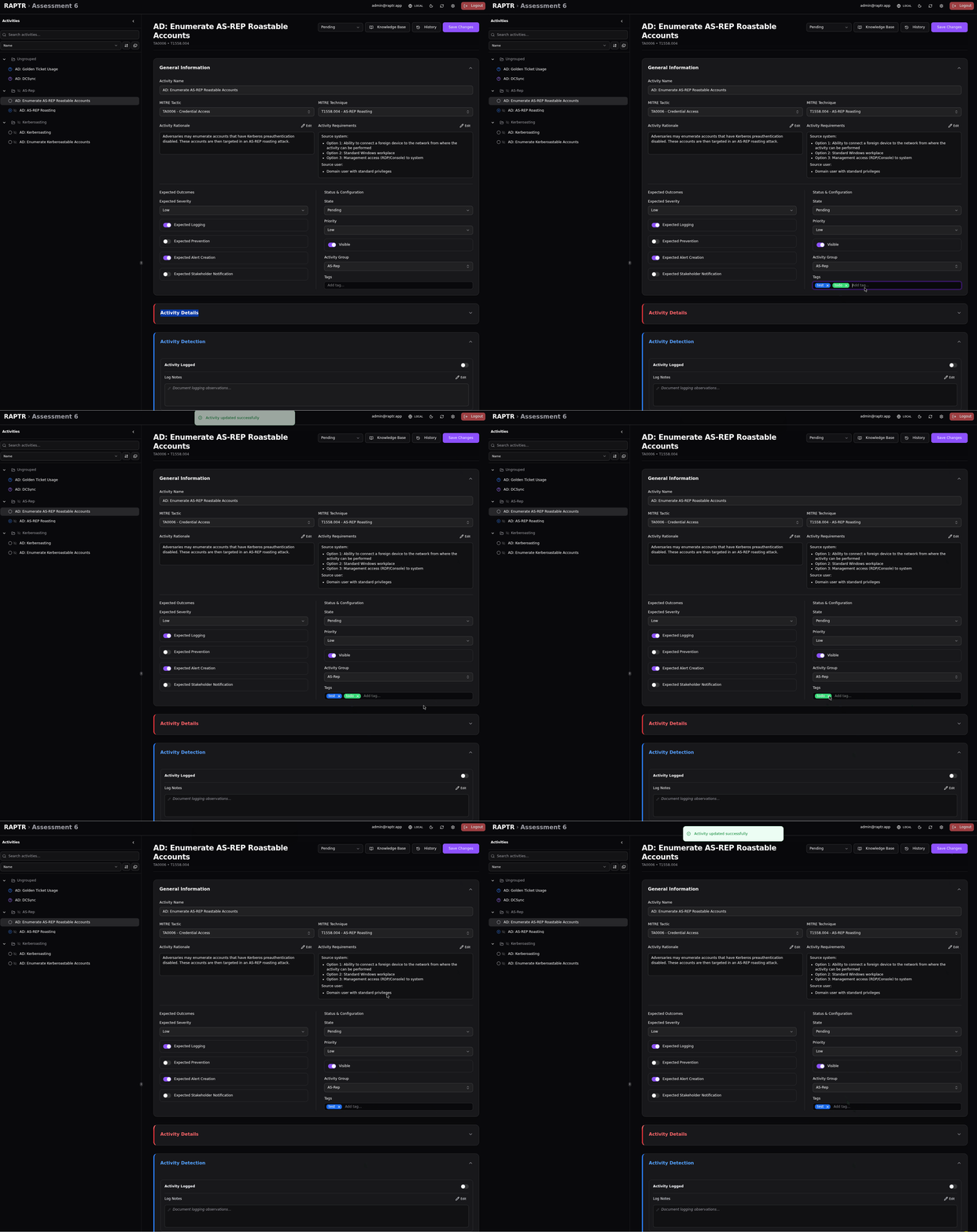
Tags can be created inline when editing an activity — simply type a new tag name and select a color. Tags are scoped to the assessment, so they are shared across all activities within that assessment.
Add tags
Tag colors
Currently, the color is assigned randomly when a tag is created.
Missing tag management
Currently the frontend has no UI implemented to delete existing tags. You can delete created tags through the API.
Using Tags
- Apply one or more tags to any activity from the activity detail view
- Use tag filters in the activity table to quickly find activities by category
- Tags are visible in both grouped and flat views
Common tag examples:
- Phase 1, Phase 2 — to track engagement phases
- High Priority, Quick Win — to flag importance
- Credential Access, Lateral Movement — to group by attack category
- Blocked, Needs Review — to track status beyond the workflow state